Template Hammer: Tool Guide
## Introduction to the Template Hammer The Template Hammer is a specialized tool introduced in the Lost Colony DLC, designed to revolutionize how players con
Introduction to the Template Hammer
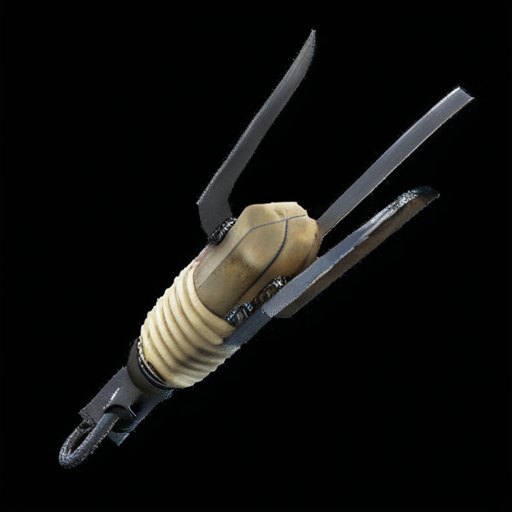
The Template Hammer is a specialized tool introduced in the Lost Colony DLC, designed to revolutionize how players construct bases and structures. Unlike standard melee weapons, this tool has zero melee damage, weighing only 2.0 units with a stack size of 1. It is crafted exclusively in a Smithy and requires a specific combination of resources: one Metal Ingot, one Charcoal, one Hide, and three pieces of Wood. Once crafted, the hammer becomes available at character level 26 for the cost of 5 Engram Points. A defining feature of this tool is its durability of 40, which does not decrease upon use, making it an infinitely reusable asset for any player willing to invest the initial crafting materials.
Unlocking and Crafting Requirements
To acquire the Template Hammer, players must first reach level 26 and allocate 5 Engram Points toward the tool. The crafting process takes place at a Smithy, requiring the player to gather specific ingredients. The recipe demands one Metal Ingot, which serves as the core structural component, alongside one Charcoal for fuel or binding. Additionally, one Hide and three pieces of Wood are necessary to complete the item. Because the hammer is a single-use item type (Singleuse: No) but has infinite durability, players do not need to worry about replacing it due to wear and tear, provided they do not lose it to death or inventory management errors.
Operational Modes and Controls
Upon equipping the Template Hammer via the hotbar or inventory, the player is presented with three distinct operational modes: Create Mode, Select Template Mode, and Build Mode. Switching between these modes is achieved by pressing the designated keybinds on the keyboard. Each mode serves a unique function in the construction pipeline. In Create Mode, players can define their own custom templates by selecting up to 2,000 structures to include. While in this mode, holding a specific key allows the user to alternate between adding structures to the template and removing them. Furthermore, the player can switch between selecting individual structures, extents, or snap override settings by pressing another key.
Creating and Saving Custom Templates
Once a player has selected the desired structures in Create Mode, the next step is to save the configuration. By pressing the save key, the interface transitions to save mode. This action opens a dialogue box where the player can input a name for the template, an author name, and a detailed description. The dialogue also displays a list of all structures currently included in the template, allowing for verification before finalization. This feature is crucial for sharing complex base designs with other players or for personal reference, ensuring that intricate architectural plans are not lost when the player logs out or dies.
Utilizing Default and Imported Templates
Select Template Mode allows players to access a library of pre-planned structures. The hammer comes with a variety of default templates, including a Starter Thatch Base, Pirate Fishing Hut, Classic Red Barn, Treehouse, Frontier Saloon, Steampunk Zeppelin Landing Bay, Wasteland Battle Dome, Viking Longhouse, Large Viking Longhouse, Medieval Castle, and a Pillar Circle Template. When placing a template, the player can manipulate the "shadow" of the structure to move it, rotate it, or adjust its height to fit the terrain. To finalize the placement, the player presses the placement key. For custom or imported templates, the player must change the dropdown selection from "Default" to "Local" before selecting and placing the desired design.
Completing and Removing Placements
After placing a template, the player enters a state where they can interact with the placed structures. To remove a template that has been placed, the player must switch to 'Complete Mode' and press the completion key, then select the "complete" option. If the template slot is empty, the template shadow will disappear from the screen, though it remains in the player's menu. However, the text notes that further testing is required to confirm whether this action leaves the actual placed structures behind or removes them entirely. This uncertainty suggests that players should proceed with caution when clearing templates to avoid accidental loss of built structures.
Strategic Applications in Base Building
The Template Hammer offers significant strategic advantages for large-scale base building. The ability to create custom templates allows for the replication of complex structures with precision, saving time on manual placement. The inclusion of diverse default templates, ranging from simple huts to massive Medieval Castles, provides immediate solutions for players needing specific architectural styles. The infinite durability ensures that the tool remains a permanent part of the player's toolkit throughout their survival journey. By mastering the switch between Create, Select, and Build modes, players can efficiently manage resources and time, focusing on gathering materials rather than the tedious process of building every brick individually.
Frequently asked questions
Introduction to the Template Hammer?
The Template Hammer is a specialized tool introduced in the Lost Colony DLC, designed to revolutionize how players construct bases and structures. Unlike standard melee weapons, this tool has zero melee damage, weighing only 2.0 units with a stack size of 1.
Unlocking and Crafting Requirements?
To acquire the Template Hammer, players must first reach level 26 and allocate 5 Engram Points toward the tool. The crafting process takes place at a Smithy, requiring the player to gather specific ingredients.
Operational Modes and Controls?
Upon equipping the Template Hammer via the hotbar or inventory, the player is presented with three distinct operational modes: Create Mode, Select Template Mode, and Build Mode. Switching between these modes is achieved by pressing the designated keybinds on the keyboard.
Creating and Saving Custom Templates?
Once a player has selected the desired structures in Create Mode, the next step is to save the configuration. By pressing the save key, the interface transitions to save mode.
Utilizing Default and Imported Templates?
Select Template Mode allows players to access a library of pre-planned structures. The hammer comes with a variety of default templates, including a Starter Thatch Base, Pirate Fishing Hut, Classic Red Barn, Treehouse, Frontier Saloon, Steampunk Zeppelin Landing Bay, Wasteland Battle Dome, Viking Longhouse, Large Viking Longhouse, Medieval Castle, and a Pillar Circle Template.
Completing and Removing Placements?
After placing a template, the player enters a state where they can interact with the placed structures. To remove a template that has been placed, the player must switch to 'Complete Mode' and press the completion key, then select the "complete" option.
Play on AncientARK
Join our ARK: Survival Ascended servers and put this guide into practice.
See the store